How to Change Your Keyboard Layout on Windows XP

Add a layout such as Dvorak or Colemak to Windows XP, then switch to it. 11 steps.

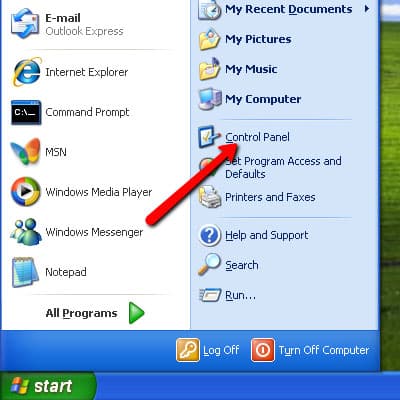
  1. Open the “Start” menu.

    Step 1 of changing the keyboard layout on Windows XP: Open the “Start” menu.
  2. Click “Control Panel”.

    Step 2 of changing the keyboard layout on Windows XP: Click “Control Panel”.
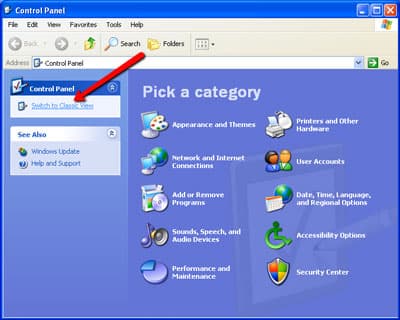
  3. Switch to Classic View.

    Step 3 of changing the keyboard layout on Windows XP: Switch to Classic View.
  4. Click “Regional and Language Options”.
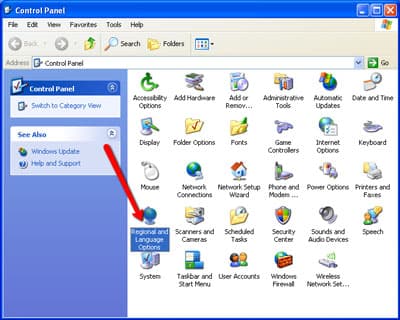
    Step 4 of changing the keyboard layout on Windows XP: Click “Regional and Language Options”.
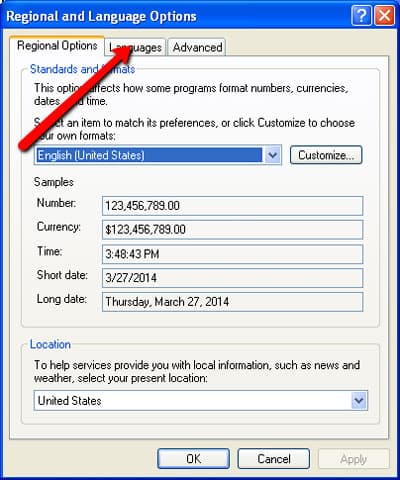
  5. Go to the “Languages” tab.

    Step 5 of changing the keyboard layout on Windows XP: Go to the “Languages” tab.
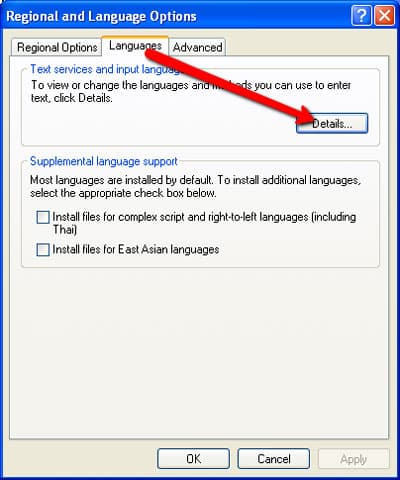
  6. Open “Details”.

    Step 6 of changing the keyboard layout on Windows XP: Open “Details”.
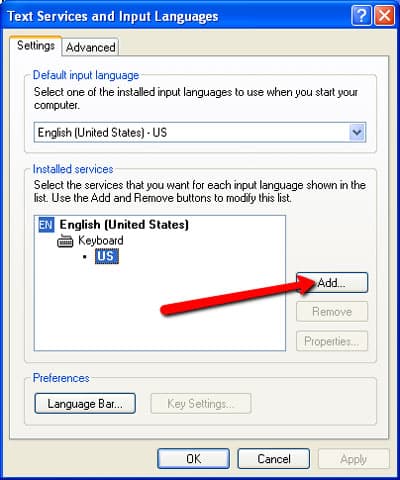
  7. Add a new input.

    Step 7 of changing the keyboard layout on Windows XP: Add a new input.
  8. Choose the layout you want, e.g. United States-Dvorak, and click “OK”.

    Colemak and Workman may need installing first: install colemak or install workman.
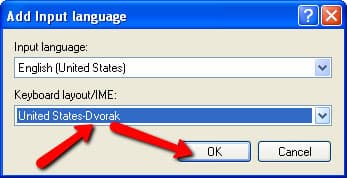
    Step 8 of changing the keyboard layout on Windows XP: Choose the layout you want, e.g. United States-Dvorak, and click “OK”.
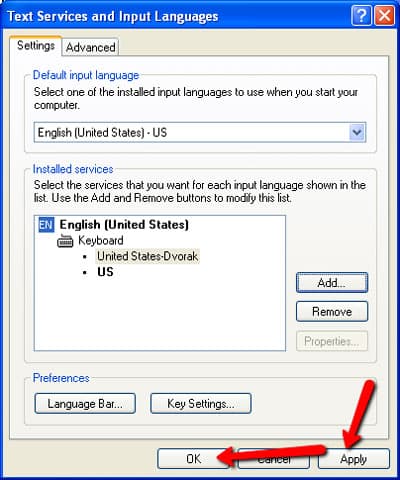
  9. Apply the changes.

    Step 9 of changing the keyboard layout on Windows XP: Apply the changes.
  10. Open the keyboard settings.

    Step 10 of changing the keyboard layout on Windows XP: Open the keyboard settings.
  11. Switch to the layout you just added.
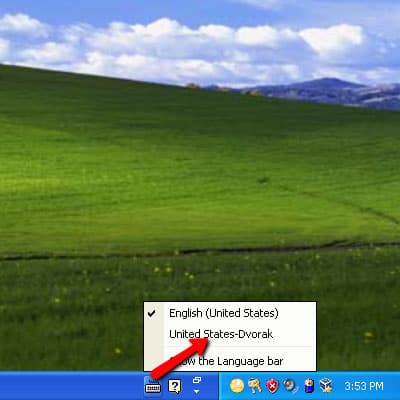
    Step 11 of changing the keyboard layout on Windows XP: Switch to the layout you just added.

Now pick the same layout here

Choose it in Settings, and the on-screen keyboard and hands follow your new layout.

Other systems